
You’ve done everything right. You went into Settings, found Working hours & location, set your hours, saved it. And then … nothing. Your calendar looks exactly the same as before.
So what’s going on?
It’s not a bug 😱
This is one of the most confusing things about Google Calendar. The working hours setting doesn’t actually show anything on your own calendar. It’s not broken, it’s just not designed to do what most people think it does.
What it actually does is tell other people when you’re available. If someone tries to invite you to a meeting outside your working hours, your non-working hours are shown as greyed out in their scheduler, and they’ll also see a warning. But for your own view, nothing changes at all.
So how do you actually see your working hours?
This is where most people hit a wall. Google Calendar genuinely doesn’t have a way to visually show your working hours to yourself. There’s no setting, no toggle, no workaround within Google Calendar that will grey out your non-working time.
Which is kinda annoying when you just want to see your working day at a glance.
The fix
Shade Calendar is a Chrome extension that does exactly what you were hoping Google Calendar would do. It adds colored shading directly onto your calendar - so you can shade your non-working hours and immediately see your working day carved out:
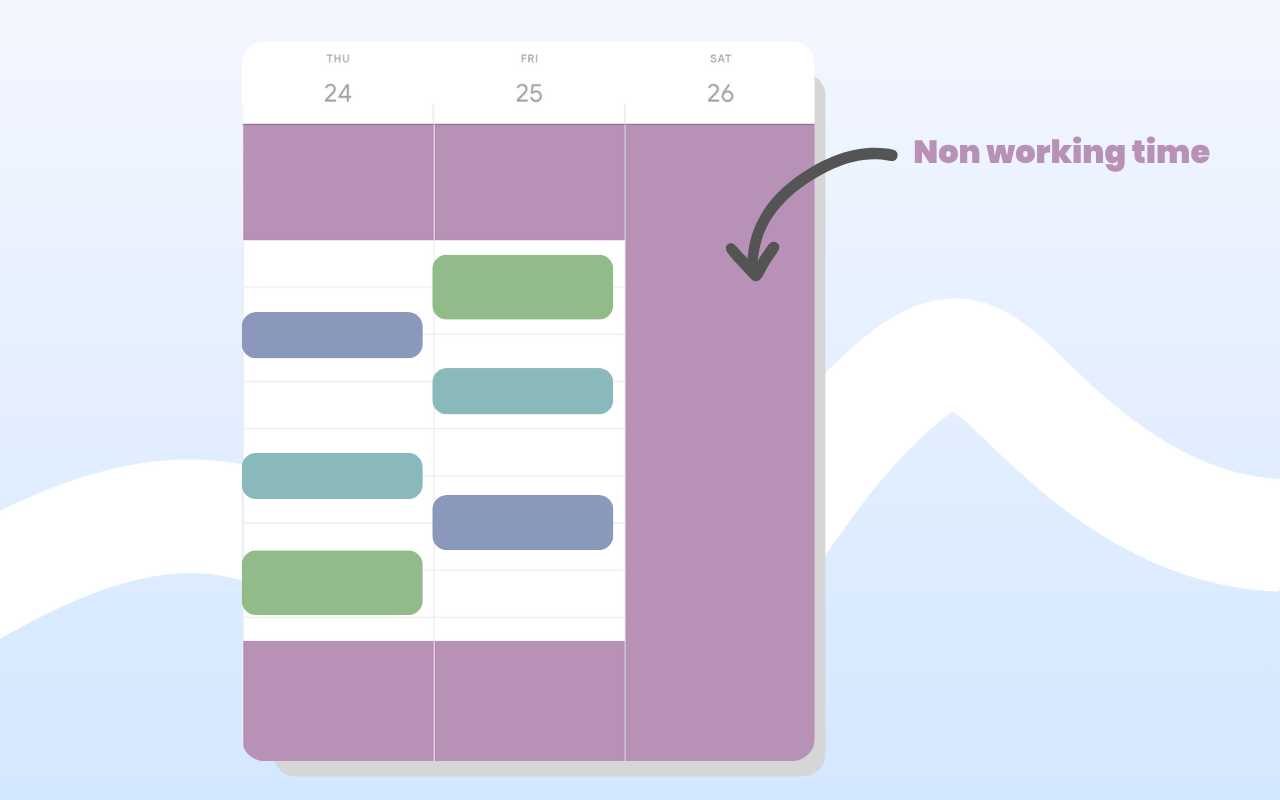
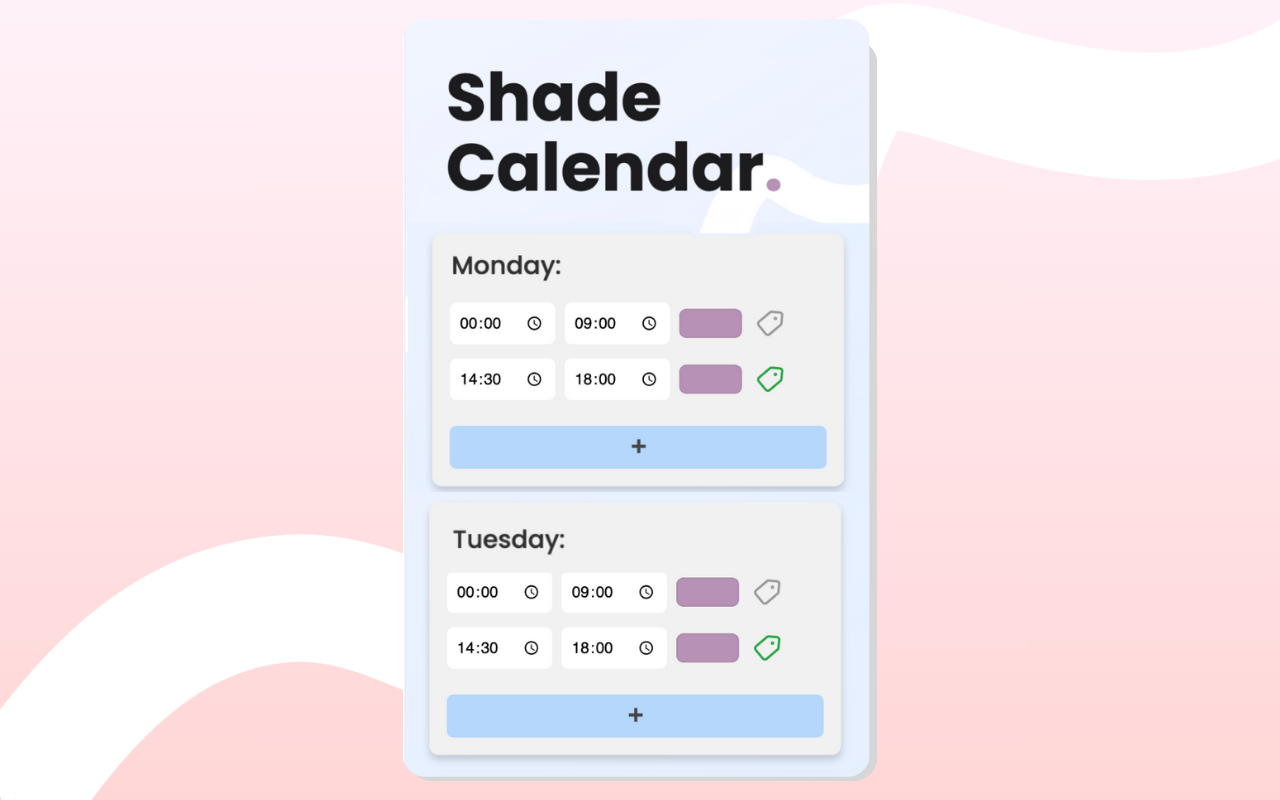
Set it up once and every time you open Google Calendar, your working hours are right there, visually, exactly where you’d expect them to be 💯
Getting started
Install the extension, open Google Calendar, and add your first shaded block. Most people have it set up in under two minutes - and immediately wonder why Google hasn’t just built this in 😂
Try Shade Calendar →