
Color coding your Google Calendar sounds simple. But if you’ve ever actually tried to do it properly, you’ll know it’s more complicated than it should be.
The workaround most people use
Google Calendar lets you assign a color to each calendar - so the most common hack is to create separate calendars for different areas of your life. One for work, one for personal, one for health. Each gets its own color, and suddenly your week looks a bit more organised.
It works, kind of 🤷♀️. But it’s flawed: you’re using calendars to represent types of time, not actual schedules. It gets messy, especially if you want to color code within a single area - like splitting your work time into your different priorities such as marketing, admin, and content creation.
A better way
Shade Calendar is a Chrome extension that lets you add color coded blocks directly onto your Google Calendar - without creating fake calendars or cluttering your schedule with dummy events.
You just set the time range, pick a color, and the block sits in the background of your calendar. Your actual events still show up on top, exactly as normal.
So you could have:
- Monday shaded purple for Admin
- Tuesday shaded green for Marketing
- Wednesday shaded blue for Content Creation
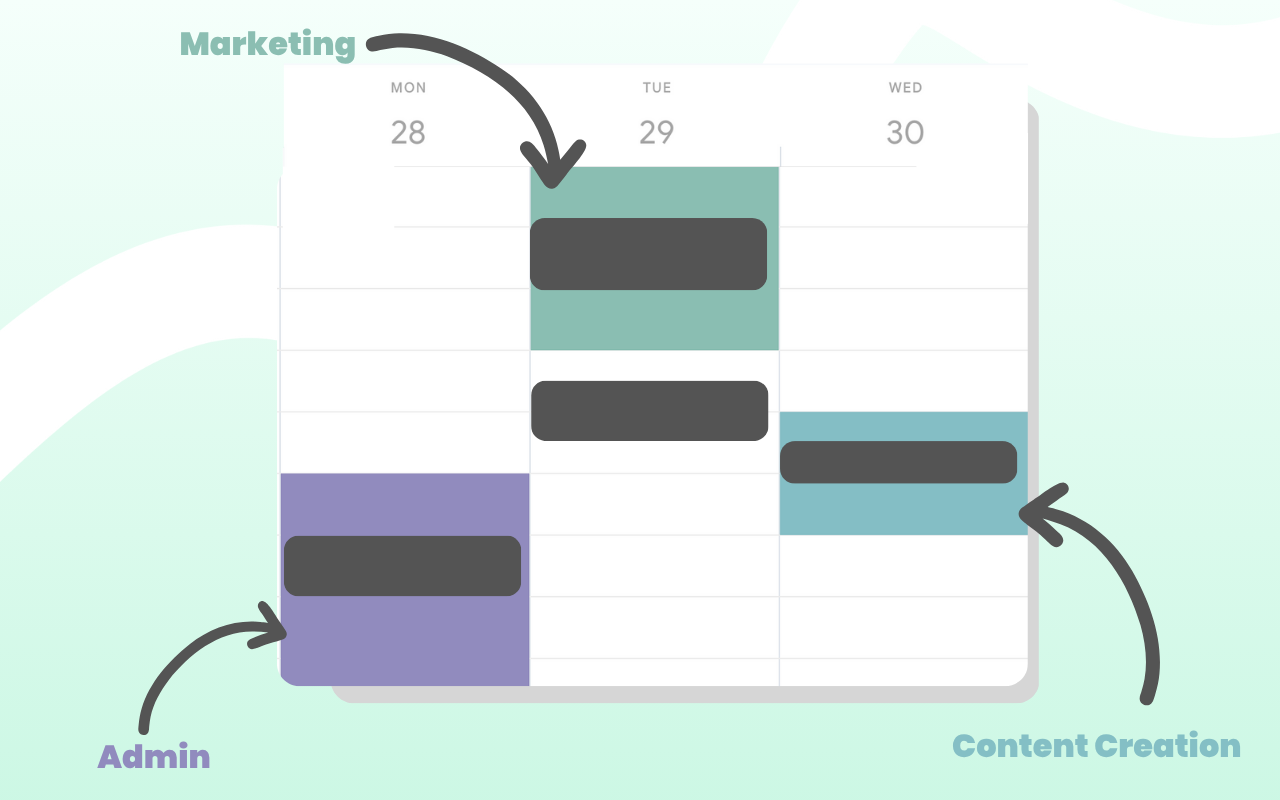
At a glance, you know exactly what kind of day it is before you’ve even read your events.
Getting started
Install the extension, open Google Calendar, and start adding blocks. It takes about two minutes.
Try Shade Calendar →