
If you’ve ever Googled “how to add time blocking to Google Calendar” you’ve probably hit a wall. Most articles say the same thing: you can’t. Not really. You can create events and color-code them, but it’s clunky, and it clutters up your calendar with fake appointments.
So what’s the actual solution?
Why Google Calendar falls short
Google Calendar is great at tracking what you’re doing. But it’s pretty terrible at helping you see your week at a glance. Everything looks the same - a wall of identical white space. There’s no way to visually carve out your working hours, your focus time, or your personal commitments.
Time blocking - the practice of assigning specific blocks of time to specific tasks - is one of the most effective productivity methods out there. The problem is Google Calendar just wasn’t built for it.
What is time blocking, anyway?
Time blocking is a productivity method where you divide your day into chunks and assign each chunk a specific task or type of work - rather than working from a to-do list and hoping for the best.
Instead of “I need to do some marketing this week,” you’d block out Monday afternoon specifically for marketing. It’s on the calendar. It’s protected. It happens.
Loads of high performers swear by it - Elon Musk, Bill Gates, Cal Newport. But you don’t need to be running a company to benefit from it 😊. Anyone with a busy schedule and competing priorities can use time blocking to feel more in control of their week.
Why Google Calendar makes it harder than it should be
Google Calendar is genuinely excellent at what it was designed for - scheduling meetings, tracking appointments, sending reminders. But time blocking requires something slightly different: a visual layer on top of your calendar that shows how your time is structured, without cluttering it up with fake events.
The workaround most people try is creating events for their time blocks - a “Deep Work” event every morning, a “No Meetings” block on Friday afternoons. It works, kind of. But your calendar fills up with events that aren’t really events, and the whole thing becomes more stressful than helpful.
What you actually want is background shading - a way to carve up your calendar visually without adding noise.
The fix
Shade Calendar is a Chrome extension that adds shaded blocks directly onto your Google Calendar. They sit behind your actual events, giving you a visual structure without the clutter.
Here’s what that looks like in practice:
For a work calendar:
- Shade midnight to 9am and 5:30pm to midnight on weekdays, plus all weekend - instantly see your working hours at a glance
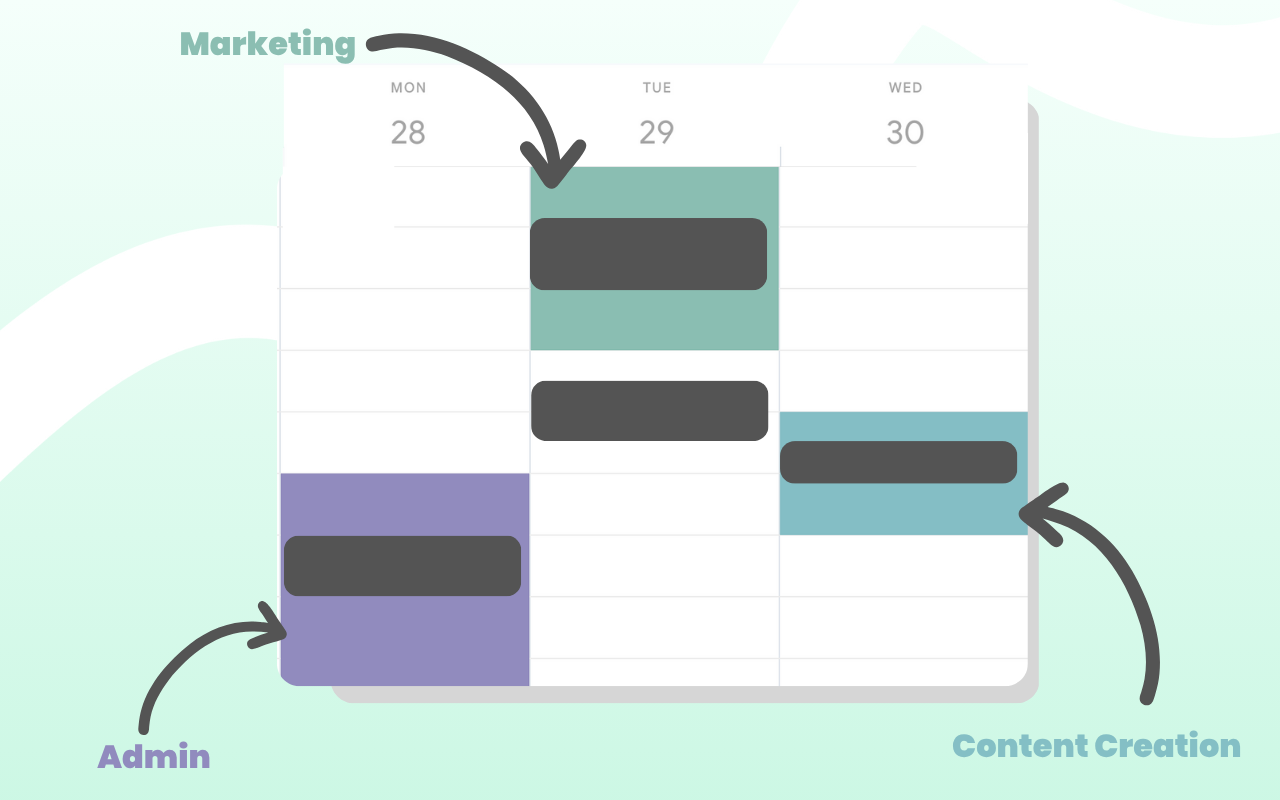
- Color-code your afternoons by priority: blue for Marketing on Mondays, orange for Content Creation on Wednesdays, purple for Admin on Fridays
- You can see exactly how much focused work time you have before the week even starts
For a personal calendar:
- Shade your working hours so you can see when you’re actually free
- Block out childcare responsibilities so they’re visible without being “events”
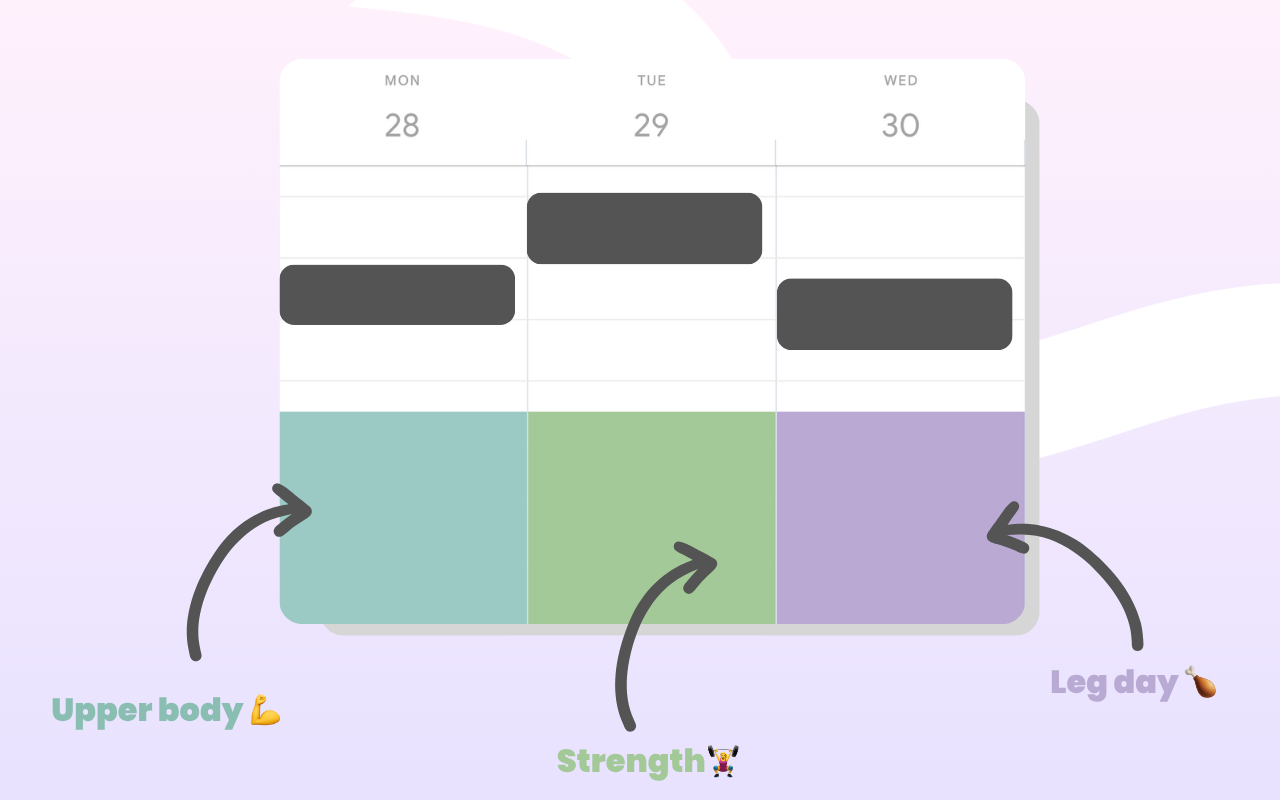
- Color-code your workouts - blue for leg day, red for abs - so your fitness schedule is baked into your week visually
Why this actually works
The reason time blocking is so effective isn’t just about scheduling - it’s about seeing. When your week is laid out visually, your brain processes it differently. You notice when you’re overcommitted. You can see at a glance whether Friday actually has room for that extra project.
Shade Calendar makes that visual layer possible inside the tool you’re already using every day. No new app to learn, and no switching between platforms.
Getting started
Setting up your first shaded blocks takes about two minutes. Install the extension, open Google Calendar, and start adding blocks that reflect how you actually want your week to look.
Most people start with their working hours and go from there. Within a week, it becomes hard to imagine going back to a plain white calendar 😁
Try Shade Calendar →